PrinterShare Mobile Print
- 4.1
- Rating
- 10.00M
- Installs
- Free
- Price

 Analysis by App-foxy
Printing from a phone sounds simple until a document is saved in the wrong app, a photo needs a different paper size, or the printer you need is not the one currently selected. I tested PrinterShare Mobile Print as a practical business app for those moments, and my impression is that it is most useful when you treat it as a repeatable printing tool rather than a one-tap novelty. It connects the files already on your Android device with a printer, giving you a direct route from mobile content to paper.
The app is developed by Mobile Dynamix and is available free of charge, with optional in-app purchases priced from $6.99 to $9.99 per item. It is rated for Everyone, works on Android 6.0 and later, and the current version is 12.22.0. Its 4.1 average from around 197 thousand ratings, together with more than 10 million installs, suggests that it has become a familiar option for people who regularly need mobile printing. I can understand that appeal, although the experience depends heavily on the printer, connection method, and the type of file being printed.
Starting with a dependable mobile printing routine
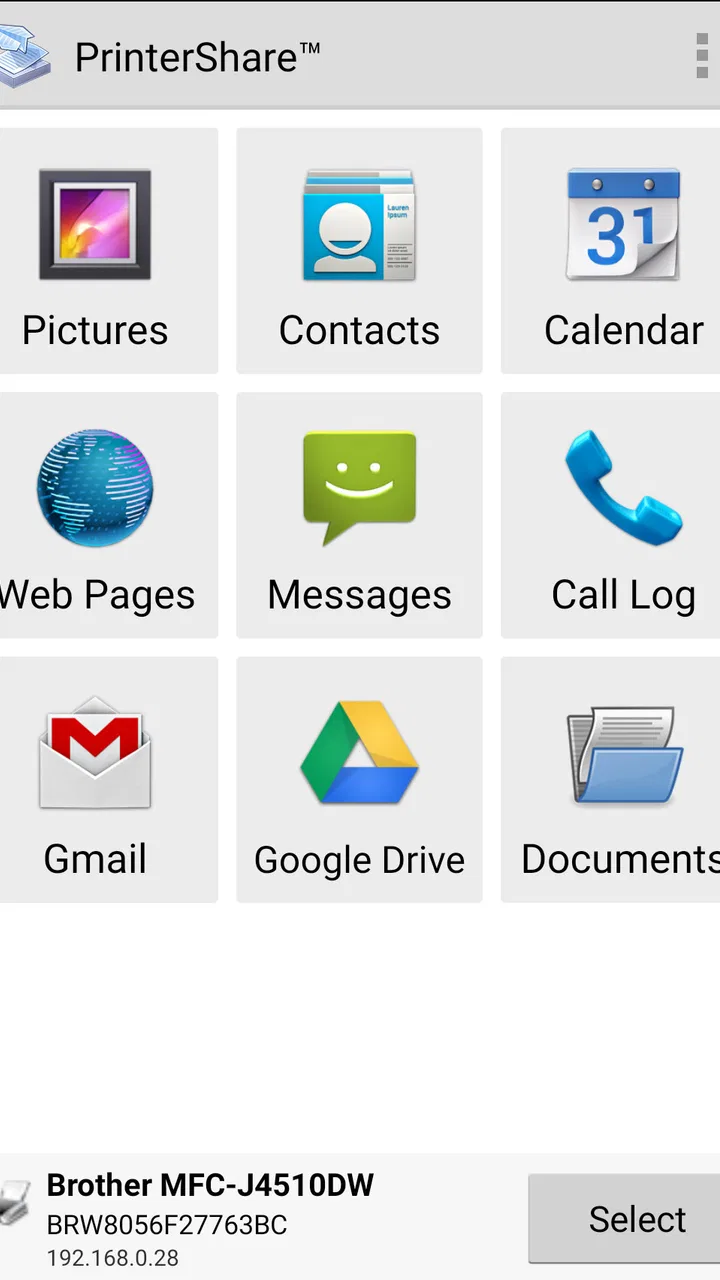
My preferred way to use PrinterShare Mobile Print is to begin with the file rather than the printer. I open the app, choose the kind of content I want to print, and then select the document, image, contact, message, or other available source. This approach keeps the task focused: first identify what needs to become paper, then decide where it should go.
You May Also Like

 Blood Strike: 2.5 Anniversary
Blood Strike’s Loadouts Turn Every Drop Into a Tactical Gamble
A close look at Blood Strike’s custom loadouts: how fast access to signature weapons reshapes its battle royale rhythm, rewards preparation, and narrows the gap between fights.

 Pandora - Music & Podcasts
Pandora’s Music Is Easy to Start, but Harder to Recover
Pandora’s strength is its low-effort path from a seed to a station. Its weak spot is how much confidence it asks you to place in connection, setup, and quiet recovery.

 8 Ball Pool
 Is Built on Rivalries, Rematches, and Routine
A close look at the rivalries, rematches, shared routines, and unanswered safety questions that turn a quick pool match into a persistent mobile community.

 Samsung Music
’s Quiet Strength Is Playing What You Already Own
Its reach comes less from spectacle than from dependable access to a personal library. That simplicity is both the app’s strongest retention engine and its ceiling.

 AccuWeather: Weather Radar
AccuWeather Review: A Quick, Clear Forecast for Everyday Decisions
For everyday plans, the best forecast is the one you can understand quickly. AccuWeather makes rain timing, radar, and local conditions easy to act on, with a few trade-offs.

 Hill Climb Racing
Why Hill Climb Racing Still Turns Crashes Into One More Run
A tiny car, a bumpy hill and one more upgrade: Hill Climb Racing keeps resurfacing because its simple chaos makes every near-miss feel personal.
More From Our News Desk
View All News


That order matters in everyday work. If I am leaving for a meeting and need a document from my phone, I do not want to browse through printer options before finding the correct file. I first check the document itself, confirm that it opens properly, and only then choose the printer. It reduces the chance of sending an old attachment or an incomplete draft to the wrong device.
The basic workflow is especially convenient when a colleague sends a file through a messaging app or when a document has been downloaded locally. Instead of transferring it to a computer, I can move from the phone to a physical copy in the same general session. For a small office, home workspace, classroom, or shop counter, that can remove an unnecessary step.
Photos are a separate case. A picture that looks fine on a phone screen may not be suitable for the paper size or orientation selected for printing. I recommend opening the image first and checking whether the important subject is near an edge. Cropping and layout choices can change what appears on the page, so I would not blindly accept the first preview if the image matters.
The same caution applies to documents. A mobile display can hide page breaks, margins, and text that sits close to the edge. When I print something important, I treat the preview as a practical inspection point rather than decoration. It is worth checking the number of pages, orientation, and whether the content is centered before confirming the job.
A realistic example is a small business owner who receives an invoice while away from a desk. With a compatible printer nearby, the app can turn that attachment into a paper copy without waiting to return to a computer. The advantage is not that printing becomes magical; it is that the phone becomes a usable part of the existing office workflow.
There is also a useful distinction between occasional and repeated printing. For an isolated page, the app can be a convenient bridge. For daily batches, I would establish a consistent sequence: select the source, inspect the preview, confirm the printer, verify paper settings, and then send the job. Repeating that sequence prevents the small mistakes that become expensive when several pages are involved.
What I check before sending a job
I first make sure the printer is awake and available. A printer that has entered a low-power state may take a moment to respond, and a phone can make the situation feel like an app problem when the hardware simply has not reconnected yet. If the printer does not appear promptly, I check the device and network before repeatedly tapping print.
I also look at the selected printer every time, even when I have used the app moments earlier. This habit is important in homes or offices with more than one printer. A familiar name in a list does not guarantee that it is the right device for the current document.
The safest habit is to verify the destination and the page layout before confirming. That single pause is more valuable than trying to fix a misprinted document afterward. It is particularly important for confidential business material, where sending a page to a shared printer can create a privacy problem even if the print itself is technically successful.
When the first attempt fails, I avoid immediately changing several things at once. I check whether the printer is powered on, whether the phone is connected in the expected way, and whether the file itself can be opened. Changing multiple settings together makes it difficult to know which adjustment solved the issue.
Settings that deserve attention
PrinterShare is easier to live with when I treat its printing choices as part of the workflow. Paper size, orientation, color, and the number of copies can have a bigger effect on the result than the app interface itself. I review those choices whenever the document is unusual, even if I use the same printer most days.
Orientation is an easy one to overlook. A landscape spreadsheet or wide image can become cramped when sent to a portrait page. Conversely, a normal letter can waste paper if the layout is changed without checking the preview. I find that choosing orientation based on the content, not on the phone’s current position, gives more predictable results.
Color is another practical trade-off. For a draft, internal checklist, or text-heavy invoice, black-and-white may be perfectly adequate. For a photo, logo, or presentation handout, color can be important. I do not use the same choice automatically for every file, because the cost and appearance of the result are different.
Copies need a deliberate check as well. It is surprisingly easy to leave a previous quantity selected when printing a new document. I make a point of reviewing the copy count before sending anything that contains personal or financial information. This is a small setting, but it is one of the most useful places to build a repeatable habit.
Paper size deserves special attention when moving between home and office printers. A document designed for one common format may not fit another format as expected. If the printer uses a different tray or paper type, the app cannot make the physical paper match the digital page automatically. I check the printer’s loaded paper before assuming that the application can resolve the mismatch.
For images, I think about whether I want a full-page result or a smaller image with space around it. The best choice depends on the purpose. A reference photo may be fine with a simple fit, while a picture intended for display deserves more care. I would rather spend a few seconds reviewing the layout than discover afterward that a face, label, or edge has been cropped.
The app’s free availability makes it easy to try with a personal printer, but the optional purchases are worth considering before building a paid workflow around it. I would start with a low-risk document and confirm that the connection and output suit my equipment. That is more sensible than assuming every printer and every file type will behave identically.
Faster patterns for people who print often
Experienced use is less about finding a secret button and more about removing repeated decisions. I keep frequently printed documents in an easy-to-find folder on the phone instead of searching through a crowded downloads area. When a file is updated, I give the new version a clear name so I do not accidentally print an earlier copy.
I also separate “ready to print” files from files that still need editing. This simple organization makes the app faster to use because the selection step becomes less risky. PrinterShare can send a file to paper, but it is not a substitute for checking whether the document is final.
A useful pattern for recurring work is to print one test page before a large batch. This is particularly sensible when changing paper, switching printers, or printing a new template. A single test can reveal an orientation or margin problem before it is repeated across many pages.
For a meeting, I would prepare the documents before the last minute. I open each file, confirm that it is readable, and then print the essential pages first. If the printer is busy or unavailable, I still have time to use another route. Relying on a mobile print job seconds before leaving is convenient only when everything is already known to work.
Another efficient habit is to use the phone for short, self-contained jobs and reserve a computer for complex layout work. PrinterShare is well suited to sending a finished document or image. It is less attractive when I need detailed page design, extensive editing, advanced document preparation, or careful batch management. In those cases, a desktop application connected directly to the printer remains the better tool.
This is where it compares favorably with ordinary file sharing but not necessarily with every printer manufacturer’s own application. A manufacturer’s app may offer deeper controls for a particular model, while PrinterShare is appealing when I want one mobile printing route across different everyday sources. The trade-off is breadth versus device-specific depth.
I would also compare it with simply emailing a file to myself and printing later from a computer. That method is familiar, but it adds a transfer step and can leave multiple versions in an inbox. PrinterShare is more direct when the phone already contains the final file and the printer is ready. The computer remains preferable when I need to edit, combine, or inspect several documents in detail.
Where the convenience reaches its limits
The app does not remove the practical limitations of printers. Connection problems, sleeping hardware, unavailable paper, and printer-side errors can still interrupt the process. When something goes wrong, I do not assume that reinstalling or repeatedly retrying the app will solve it. The physical printer and the phone’s connection deserve equal attention.
Compatibility is another reason to test before relying on it for urgent work. The app supports mobile printing as its central purpose, but the exact experience can vary with printer models and connection arrangements. I would test the specific printer I plan to use, especially if it belongs to a workplace or shared environment.
Large or complicated documents are also a boundary. A phone is convenient for selecting and sending a finished file, but it is not always the best place to inspect complex formatting. If a document contains many pages, unusual fonts, tables, or precise layout requirements, I prefer to validate it on a larger screen first.
Privacy deserves a deliberate approach. Printing a document from a phone can be convenient, but the file may contain personal, financial, or workplace information. I use a printer I trust and avoid sending sensitive material to a shared device unless I know who can collect the pages. The app makes the mobile route easier; it does not change the responsibility of handling the printed content carefully.
The optional purchases may also affect how attractive the app is for different users. Someone who prints once every few months may prefer to stay with the free experience or use the printer’s included software. Someone who prints regularly from multiple mobile sources may find the convenience more valuable. I would judge that choice by frequency and workflow, not by the presence of a purchase option alone.
Android compatibility is broad enough for many older devices because the minimum requirement is Android 6.0, but users on older phones should still expect a less comfortable experience than on a recent device. Screen size, file handling, and the way other apps share documents can influence how smooth the process feels. The app can be useful on an older phone, but the surrounding device experience still matters.
People who need highly controlled professional output should be selective. If color accuracy, finishing, duplex behavior, document imposition, or advanced queue management is central to the job, a computer-based workflow or a printer-specific utility may be a better fit. PrinterShare is strongest when the goal is practical mobile output, not specialized production.
My verdict after building a repeatable workflow
PrinterShare Mobile Print is a useful business app for anyone who regularly has a finished document or photo on an Android phone and needs a physical copy without routing everything through a computer. I like its direct role: it connects mobile content with a printer and keeps ordinary print jobs within reach when I am away from my desk.
Its best users are people with straightforward needs: home workers printing forms, students printing assignments, small businesses producing invoices, or families sending occasional photos to a nearby printer. The app is also a sensible backup when a computer is unavailable but the phone already holds the correct file.
I would skip it as my main solution if I rarely print, require advanced document composition, or depend on very precise printer-specific controls. In those situations, the built-in printing route on a computer or the utility made for a particular printer may be simpler and more capable. The broad mobile approach is convenient, but it cannot replace every specialized workflow.
The strongest improvement comes from habits rather than hidden tricks: keep final files organized, inspect the preview, confirm the printer, review paper and orientation, and test unfamiliar jobs before printing a batch. Those steps make the app feel much more dependable and reduce waste.
With a 4.1 average and a user base of over 10 million installs, it has clearly found a practical place in mobile printing. My recommendation is positive but specific: try it with your own printer and a non-urgent document, then decide whether its convenience justifies any optional purchase. If that test fits your routine, PrinterShare Mobile Print can become a handy bridge between the files in your pocket and the paper on your desk.
FAQs for PrinterShare Mobile Print
01What devices are compatible with PrinterShare Mobile Print?
PrinterShare Mobile Print is compatible with a wide range of Android and iOS devices. It supports smartphones and tablets running Android version 5.0 and above, and iOS devices with iOS version 10.0 or later. Ensure your device meets these requirements to ensure optimal performance.
02Does PrinterShare Mobile Print support wireless printing?
Yes, PrinterShare Mobile Print supports wireless printing. You can print documents and photos directly from your device to Wi-Fi printers, as well as Bluetooth printers. It also supports remote printing via the internet with the PrinterShare Remote feature, allowing for versatile printing options.
03What types of files can I print using PrinterShare Mobile Print?
PrinterShare Mobile Print supports a wide array of file types, including PDFs, Word documents, Excel spreadsheets, PowerPoint presentations, and images in formats like JPEG and PNG. This versatility makes it suitable for both personal and professional use, covering most of your printing needs.
04Is there a cost associated with using PrinterShare Mobile Print?
PrinterShare Mobile Print offers a free version with basic features. However, to access advanced features like remote printing and printing PDFs without watermarks, you will need to purchase the Premium Key. The one-time purchase unlocks all features, providing a comprehensive printing solution.
05How secure is PrinterShare Mobile Print when handling my documents?
PrinterShare Mobile Print prioritizes user security by ensuring that documents are not stored on their servers. All transfers are handled directly between your device and the printer, maintaining privacy. For additional security, it is advisable to use secure networks and keep your app updated.
Pros
- Easy setup process for quick printing.
- Supports a wide range of printers.
- Prints from multiple document types.
- Offers cloud printing options.
- User-friendly interface.
Cons
- Limited free version features.
- In-app purchases can be costly.
- Occasional connectivity issues.
- Some printers may not be supported.
- Requires internet for cloud printing.

PrinterShare Mobile Print
Gallery